


The Drooms ‘View as’ feature helps administrators to set permissions correctly. It allows to check and view the data room from the point of view of any user group based on the actually granted view permissions. This way wrongly set or missing permissions can be easily identified and corrected.
To view the data room from the point of view of a user group, proceed as follows:
- Sign in to Drooms and select the project and data room where you want to check the permissions of a specific user group.
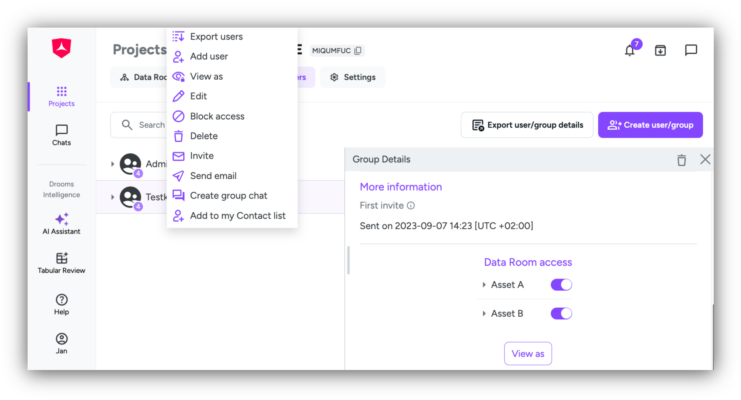
- Open the Users section and select a specific user group on the left with a right click to open the group context menu, then click on option ‘View as’, or select the group with a left click to open the Group Details overview on the right, then click on the ‘View as’ button at the bottom.
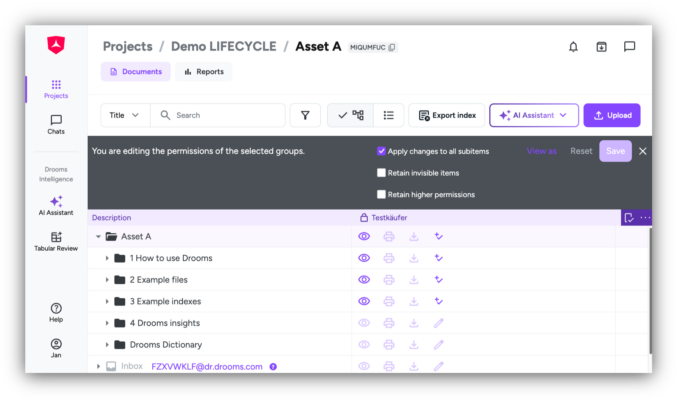
- Alternatively you can also open the Documents section directly, open the permissions control panel, and then select a specific user group to display the overall permissions granted or not granted to this group. The permissions control panel tool bar will offer a button ‘View as’ to just display the granted permissions (in Violet, next to ‘Reset’ and ‘Save’ buttons).
- In projects with a single data room you will be redirected to the Documents section with the data room index displaying only those folders and index points, and granted permissions, for which the user group has been granted at least view permissions. In projects with multiple data rooms you will have to select the specific data room first.
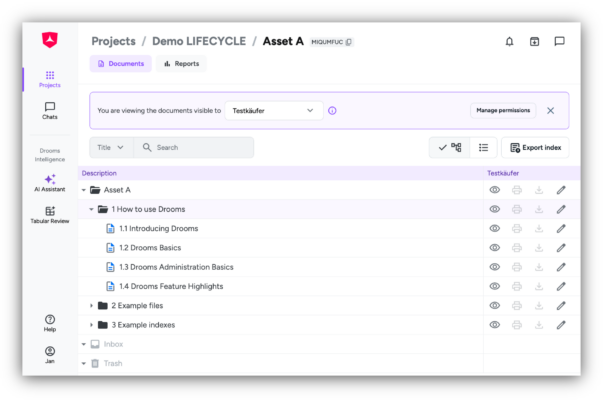
- In ‘View as’ index mode, the index will display only folders and index points, as well as the set permissions themselves on the right, for which the selected user group has been granted at least view permission.
- For ease of use you can use the group selection drop-down menu in the top banner to check other groups without leaving the view.
- If you now want to edit the permissions of a user group, click on ‘Manage permissions’ in the top banner. The permissions control panel will open and allow you to change the permissions for the selected user group – after saving your changes click on ‘View as’ to directly review the made changes again in ‘View as’ index display mode.
- Like the regular index display mode the ‘View as’ index mode also offers to switch between index tree view and list view, and an ‘Export index’ button.
- Click on ‘Export index’ to download a complete list of documents visible to the selected group, enabling you to clearly document the group’s data room view.
- Click on the Exit button in the top banner to return to the regular index display mode.