


Locking the Folder Structure
The Drooms folder structure lock (or ‘folder lock’) allows project administrators to freeze the index folder structure down to a selectable folder level, once it has been set up properly, to ensure it will not be accidentally changed. While the folder structure itself is locked, though, everyone else can continue to work with the files contained within the locked folders (upload, move, delete files) and the not locked folders below the specified folder lock level.
The reason that we introduced the folder structure lock is that without it, administrators and users uploading files and editing folder contents were able to rename, move, and delete folders. Over long asset lifecycles, with many contributors and auditors touching the same data room, potentially the index can degrade until nobody fully trusts it, causing costly efforts and time delays to validate, correct and prepare the index and assets for a transaction, for example. The folder structure lock now ensures that certain parts of the index stay stable.
To lock/unlock the folder structure of a single data room and project, proceed as follows:
- Sign in to Drooms.
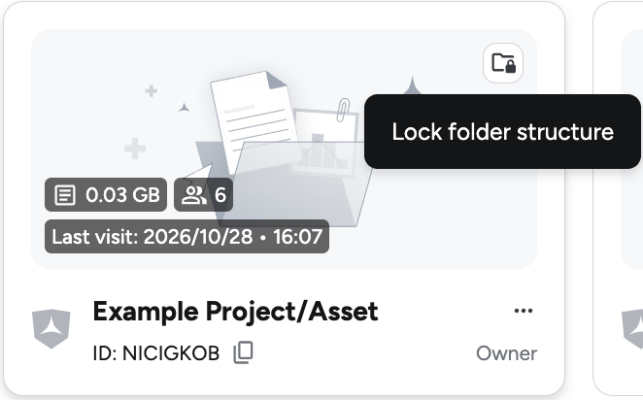
- On the project overview page with the projects you have access to, hover your mouse over the project’s tile and click either on the little folder icon in the tile’s top right corner, or the (…) icon in its bottom right corner (available also in project list view) to open the pop-up window ‘Lock folder structure’. Portfolio projects with multiple data rooms will not show these icons.
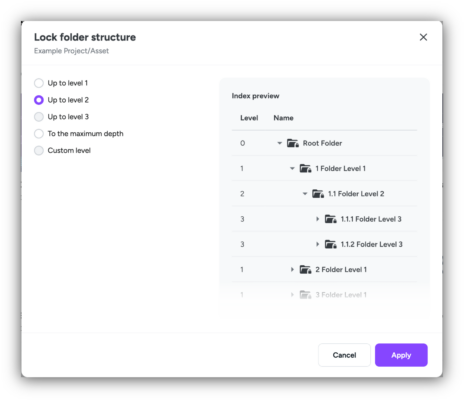
- On the left, select the folder level to which recursively the folder structure should be locked. You can choose to lock the folder structure
- for the 1st main folder level,
- recursively down to the 2nd folder level,
- recursively down to the 3rd folder level,
- recursively down to the maximum depth,
- down to a custom level, which you can define.
- Click on ‘Apply’ to lock the folder structure of the selected project and data room as intended.
- To unlock the folder structure again, click either on the little folder icon, or the (…) icon in the specific project overview’s project tile or list view entry once more and click on ‘Unlock folder structure’.
- In the confirmation dialog, which pops up, click on ‘Unlock’.
To batch lock/unlock the folder structure of multiple data rooms and projects, proceed as follows:
- Sign in to Drooms.
- On the project overview page with the projects you have access to, expand the drop-down menu ‘Batch lock’ above the project overview on the right.
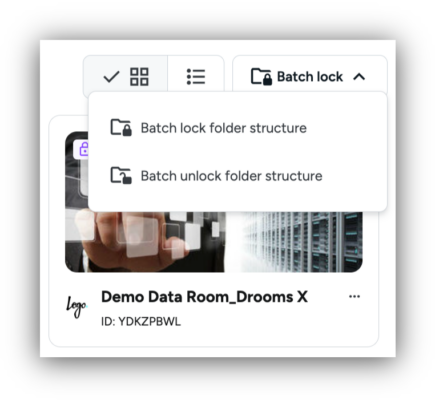
- Select option ‘Batch lock folder structure’ to open the respective pop-up dialog window.
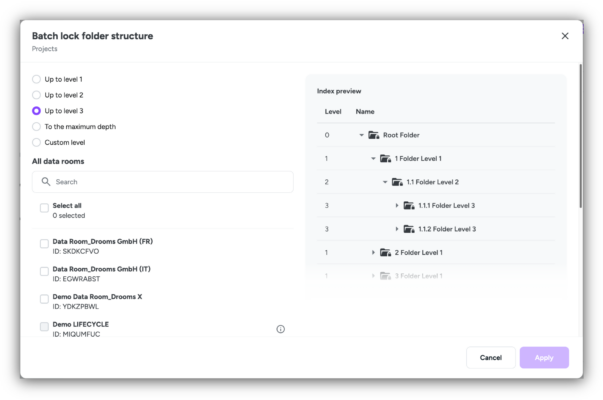
- On the left, select the folder level to which recursively the folder structure should be locked. You can choose to lock the folder structure
- for the 1st main folder level,
- recursively down to the 2nd folder level,
- recursively down to the 3rd folder level,
- recursively down to the maximum depth,
- down to a custom level, which you can define.
- Next select the project(s) with the data room(s) to which the folder structure lock should be applied:
- search for a specific project
- select all projects (portfolio projects with multiple data rooms cannot be selected)
- select several specific projects
- Click on ‘Apply’ to batch lock the folder structure as intended of the selected projects and data rooms.
- To batch unlock the folder structures again, expand the drop-down menu ‘Batch lock’ above the project overview on the right and select the option ‘Batch unlock folder structure’ to open the respective pop-up dialog window.
- Select the project(s) with the data room(s) where the folder structure should be unlocked (portfolio projects with multiple data rooms (assets) and projects without locked folder structure cannot be selected):
- search for a specific project
- select all projects
- select several specific projects
- Click on ‘Unlock’.
To lock/unlock the folder structure of a single data room (asset), which belongs to a portfolio project, proceed as follows:
- Sign in to Drooms.
- On the project overview page with the projects you have access to, select the portfolio project with multiple data rooms (assets), which contains the data room (asset), whose folder structure you want to lock.
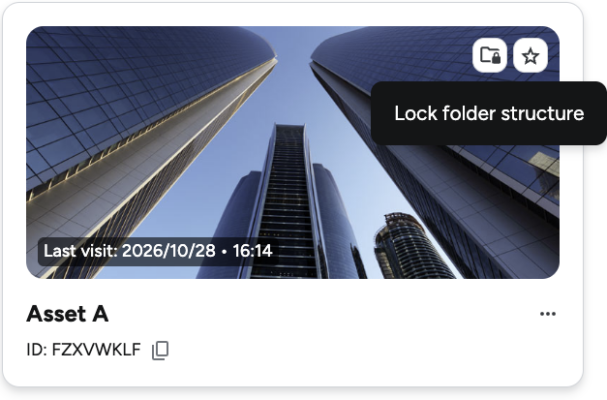
- On the portfolio project’s asset overview page, hover your mouse over the asset’s tile and click either on the little folder icon in the tile’s top right corner, or the (…) icon in its bottom right corner (available also in asset list view to open the respective pop-up dialog (see analogue screenshot further up).
- On the left, select the folder level to which recursively the folder structure should be locked. You can choose to lock the folder structure
- for the 1st main folder level,
- recursively down to the 2nd folder level,
- recursively down to the 3rd folder level,
- recursively down to the maximum depth,
- down to a custom level, which you can define.
- Click on ‘Apply’ to lock the folder structure as intended.
- To unlock the folder structure again, select the portfolio project with multiple data rooms (assets), which contains the data room (asset), whose folder structure you want to unlock.
- Click either on the little folder icon, or the (…) icon in the specific asset overview’s asset tile or list view entry once more and click on ‘Unlock folder structure’.
- In the confirmation dialog window, which pops up, click on ‘Unlock’.
To batch lock/unlock the folder structure of multiple data rooms (assets), which belong to a portfolio project, proceed as follows:
- Sign in to Drooms.
- On the project overview page with the projects you have access to, select the portfolio project with multiple data rooms (assets).
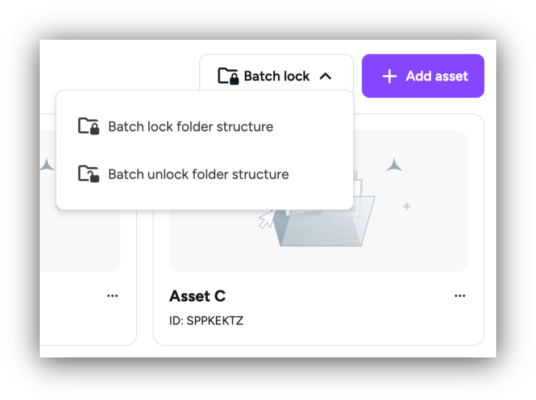
- On the portfolio project’s asset overview page, expand the drop-down menu ‘Batch lock’ above the asset overview on the right.
- Select option ‘Batch lock folder structure’ to open the respective pop-up dialog window (see analogue screenshot further up).
- On the left, select the folder level to which recursively the folder structure should be locked. You can choose to lock the folder structure
- for the 1st main folder level,
- recursively down to the 2nd folder level,
- recursively down to the 3rd folder level,
- recursively down to the maximum depth,
- down to a custom level, which you can define.
- Next select the data room/s (asset/s) to which the folder structure lock should be applied:
- search for a specific project
- select all data rooms (assets)
- select several specific data rooms (assets)
- Click on ‘Apply’ to lock the folder structure of the selected data rooms (assets) as intended.
- To batch unlock the folder structures again, expand the drop-down menu ‘Batch lock’ above the asset overview on the right and select the option ‘Batch unlock folder structure’ to open the respective pop-up dialog window.
- Select the data room/s (asset/s), whose folder structure should be unlocked (data rooms (assets) without locked folder structure cannot be selected):
- search for a specific data room (asset)
- select all data room/s (asset/s)
- select several specific data rooms (assets)
- Click on ‘Unlock’ to unlock the folder structure of the selected data room/s (asset/s) as intended.
Please note the following rules and behaviour:
- The folder structure lock always applies to the selected index/folder structure levels overall, never to individual folders. The data room root is level 0. The numbered top-level folders (1, 2, 3 …) are level 1, their sub-folders (e.g. 3.1) level 2, and so on.
- While locking a folder structure requires to select a level, down to which the folders will be recursively locked, unlocking always applies to all locked folder levels alike, specific folders cannot be unlocked again.
- To reduce or increase the depth of a folder structure lock, unlock the folder structure first, the lock the folder structure again selecting a different level.
- Once a folder level is locked, the structural position of all its folders, i.e., their parent and their place in the tree, as well as their index numbering cannot change.
- While folder levels and their folders are locked, document index points are not. Documents can always be added, edited, moved, and deleted again, as far as locked folders are not ‘in their way’. This means that:
- Folders cannot be added to folders on locked folder levels, but on levels, which are not locked.
- Document index points can be added to locked folders (inserted in) and will appear as new items with the next free index numbering.
- Document index points can be moved and then inserted in between locked folders, if there should be an index gap in between these folders, but will never cause the locked folders to be renumbered.
- Deleting an index point preceding a locked folder in the index will leave an index gap and not cause an automatic renumbering.
History entries for locking and unlocking folder structures
Locking and unlocking the folder structure are administrative actions on the asset level and not changes to any individual index node. They are therefore recorded in the project history report for the asset, not in the per-node index history:
- Each respective project history entry records who did it, when, the asset, the action, and the level:
- Locking → project history entry “Locked up to level X” (the level is part of the record).
- Unlocking → project history entry “Unlocked” (always all levels affected).
- Both actions are reported individually per data room/asset in their respecive project or data room histories, whether just a single data room’s folder structure is locked or unlocked, or those of several data rooms’ at once.