


To start a new 1-1 or group conversation, proceed as follows:
- After signing in to Drooms, click on the Drooms Chat icon in the vertical left main navigation bar to open the Chat section. By default the tab and page ‘Chat’ is preselected, listing all current conversations.
- Click on ‘New chat’ at the top of the Chat page to start a new conversation.
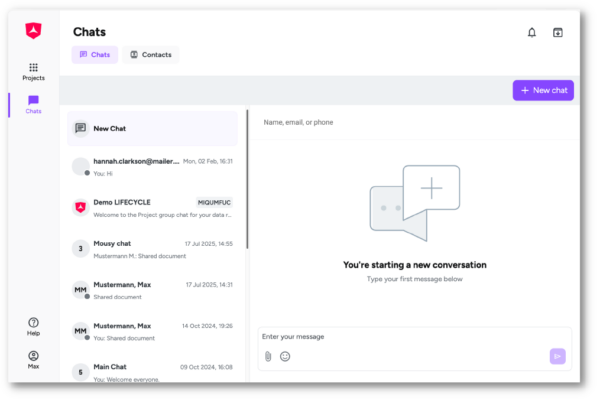
‘
- Alternatively, click on the Drooms Chat icon in the top right corner to open the Drooms Chat panel, and click on ‘New chat’ at the bottom of the Chat panel to start a new conversation.
- Search and consecutively enter the intended participants (up to 99) by entering the respective user names or e-mail addresses. A drop-down menu with autocomplete function will show you matching Drooms users, who have not disabled the Drooms Chat, and allow you to select them one by one. This includes Drooms users, whom you have not added to your contacts, yet.
- If you select one of your existing contacts, the user will be added as conversation participant.
- If you select a Drooms user, whom you have not added to your contacts, yet, you can add this user to your contacts, but will have to select the user again, now as one of your contacts.
- If you select one of your existing contacts, the user will be added as conversation participant.
To start a new 1-1 or group conversation via the Contacts page, proceed as follows:
- After signing in to Drooms, open the Drooms Chat section and the default Chat tab with a click on the left main navigation Chat icon or open the right-hand Drooms Chat panel with a click on the Drooms Chat icon in the top right corner.
- In the Chat section, select the Contacts tab and page, or click on ‘Contacts’ at the bottom of the Chat panel to open your Contacts page.
- Optionally select the intended conversation participant(s) using the check boxes and click on the button ‘Chat’ in the top bar of the contacts list, or open the right-click contacts page context menu and select option ‘Chat’.
- A new conversation with the preselected participants will be started. You can further edit the intended participants, when you click on the icon with three dots (…), and then enter and send your message.
- Select one or more users (if available also from different groups), and either click on the ‘Send message’ button displayed to the right of the user name(s), or open the users context menu with a click onto the icon with three dots (…) and select option ‘Send message’ (single selected user) or ‘Create group chat’ (multiple selected users).
In case of a new group chat, a modal dialog ‘New group chat’ will allow you to review and edit once more the selected participants, before you click on ‘Create’.

- The right-hand Chat panel will open for starting either a new conversation, if you chose a user you had no conversation with, yet, or for continuing an already existing conversation. Enter your message and click on the ‘Send’ icon in the bottom right corner.