


Changing your password, as well as managing your authentication method for accessing projects protected by 2FA (two factor authentication) are important security and privacy settings.
To edit your security and privacy settings, proceed as follows:
- Sign in to Drooms.
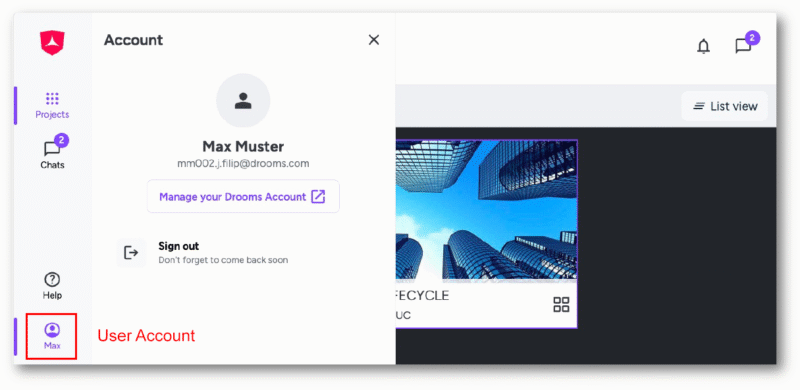
- Click on the bottom button (showing your first name) in the vertical main navigation tool bar on the left to open the Account panel.
- Click on ‘Manage your Drooms account’ to open the Account settings page in a separate browser tab, and select third option ‘Security and privacy settings’.
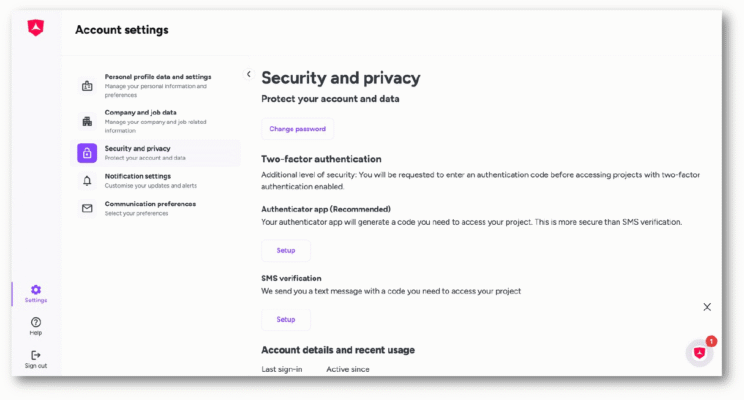
On the right you can manage following security and privacy settings:
- Change password
- Manage 2FA settings
Please note: The options for managing your 2FA access are only shown, once you have been invited to a project protected by two-factor authentication. 2FA is only required to sign in to specific projects, for which it was enabled upon request by the project owner, not for Drooms as such.
To change your password, proceed as follows:
- Click on ‘Change password’ to open the reset password settings page.
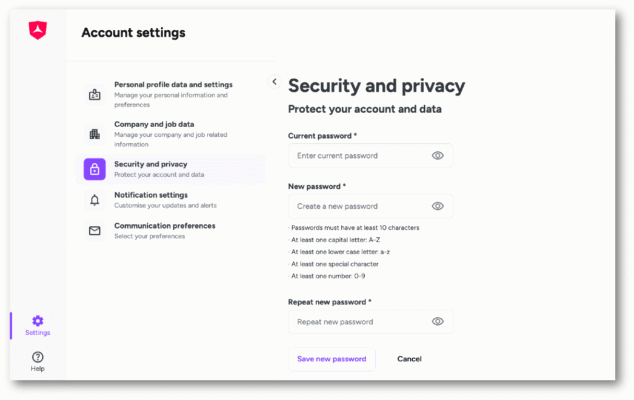
- Enter your current password.
- Enter your new password. Passwords must have:
- at least 10 characters, and:
-
at least one capital letter: A-Z
-
at least one lower case letter: a-z
-
at least one special character
-
at least one number: 0-9
-
Repeat your new password.
- Click on ‘Save new password’ (or ‘Cancel’ to return to the previous page).