Helpcentre / Drooms Basics / Drooms Chat / Adding and Managing Contacts
Adding and Managing Contacts
Contacts are essential for chatting. The Drooms Chat offers following features for adding and managing contacts:
- Adding contacts via the Contacts page
- Adding contacts while starting new conversations
- Adding other conversation participants as contacts
- Adding contacts via the Users section of a project
- Adding mobile phone contacts as contacts
- Editing contacts
- Blocking and unblocking contacts or chat participants
- Deleting contacts
To add contacts via the Contacts page, proceed as follows:
- After signing in to Drooms, click on the Drooms Chat icon in the vertical left main navigation bar to open the Chat section. Alternatively you can open the right hand Chat panel with a click on the top right corner Chat panel icon (step 1).

- Click on the ‘Contacts’ tab at the top of the Chat section to open the Contacts page, or click on the bottom left ‘Contacts’ button in the right-hand Chat panel (step 2).
- Click on the button ‘Add to contacts’ above the contacts list (step 3) to open the pop-up dialog ‘New contact’, allowing you to add contacts from other projects or by e-mail.
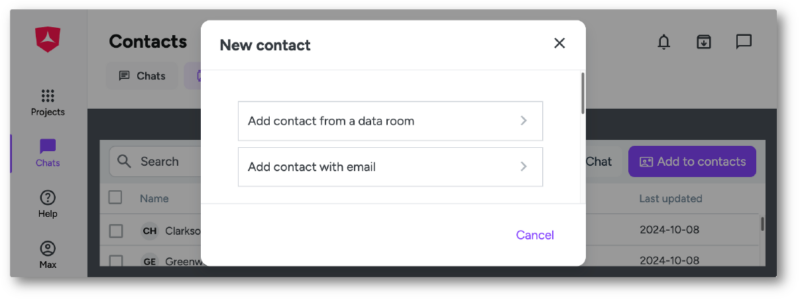
- Click on option ‘Add contact from a data room’ to first select a project you have access to, secondly select a user group, if available, and thirdly select one or more group members, or all, using the check boxes provided. When done, click on ‘Add’ and the selected user(s) will be added to your contacts, which you then can continue to edit.
If you select a project as administrator of that project, you will be able to select any group and add every user to your contacts.
If you select a project you have been invited to as regular user, you can only select your own user group under the condition that the option ‘group collaboration’ has been enabled for it (group members may see each other and collaborate). In this case you can add fellow group members from that project to your contacts.
Users, who are already contacts, will be ticked off and cannot be selected again.
- Click on option ‘Add contact with email’ to open the dialog ‘New contact’. It features an e-mail address entry field with autocomplete search. Start entering an e-mail address, and a drop-down selection menu will offer you the Drooms users matching your entry for selection, but you can enter also the e-mail address of someone, who does not have a Drooms account, yet, to add this person to your contacts. Optionally you can add further information about the contact, or edit auto-filled information (first name, last name, phone number, company, and a note). When done, click on ‘Add’ and the selected or entered user will be added to your contacts.s
Drooms users, who have disabled the Drooms Chat in their personal user settings, cannot be found via the e-mail autocomplete function and cannot be manually added as contacts.
Persons without a Drooms account will receive an invitation to register with Drooms without having a particular project access, when added as contact.
Users, who are already contacts, cannot be added as contact again.
To add contacts while starting new conversations, proceed as follows:
- After signing in to Drooms, open the Drooms Chat section and the default Chat tab with a click on the left main navigation Chat icon or open the right-hand Drooms Chat panel with a click on the Drooms Chat icon in the top right corner.
- Both the Chat page and the Chat panel feature a button ‘New Chat’ for starting a new conversation.
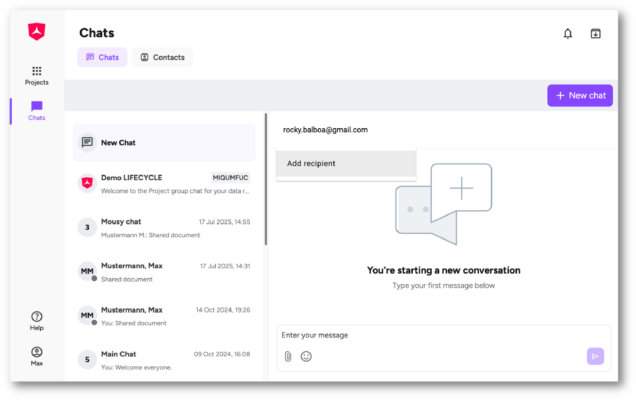
- Start a new conversation and enter an e-mail address. A drop-down selection menu will offer you the Drooms users matching your entry for selection, but you can enter also the e-mail address of someone, who does not have a Drooms account, yet. If you select or enter an e-mail address of a Drooms user or other person, who is not one of your contacts, yet, a button ‘Add recipient’ will allow you to add this user or person to your contacts once you send a first message.
Drooms users, who have disabled the Drooms Chat in their personal user settings, cannot be found via the e-mail autocomplete function and cannot be manually added as contacts.
Persons without a Drooms account will receive an invitation to register with Drooms without having a particular project access, when added as contact.
Users, who are already contacts, cannot be added as contact again.
To add other conversation participants as contacts, proceed as follows:
- After signing in to Drooms, open the Drooms Chat section and the default Chat tab with a click on the left main navigation Chat icon or open the right-hand Drooms Chat panel with a click on the Drooms Chat icon in the top right corner.
- Select an existing conversation and click on the ‘…’ icon with three dots to the right in the chat title line to open the chat context menu.
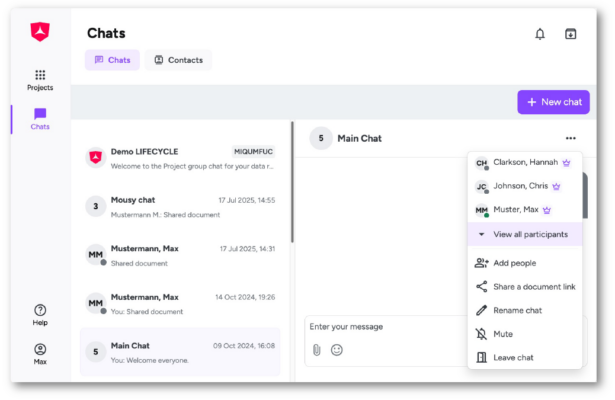
- The context menu will list the first few conversation participants and an option ‘View all participants’, if not all participants can be listed directly. If necessary, open the dialog ‘All participants’.
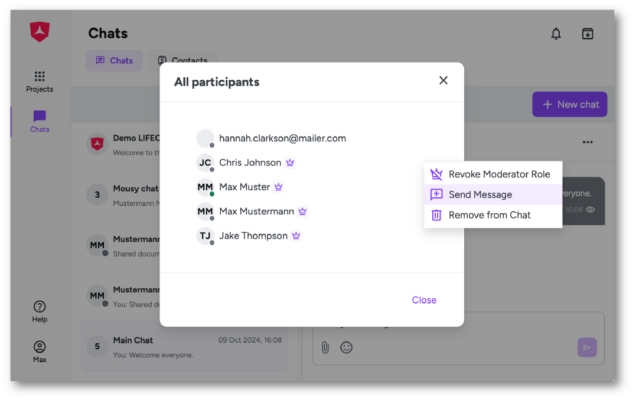
- Hover the mouse over the user that you want to add to your contacts in the context menu or in the ‘All participants’ dialog until a ‘…’ icon appears to the right of it.
- Click on the ‘…’ icon to open a user-related context menu and click on the ‘Send Message’ button to start a conversation with this user. When you send your first message, the participant is automatically added to your contacts, if not listed as your contact, yet.
- Using the Drooms iOS app, you can also tip on a user’s profile image (bubble) displayed for 1-1 conversations in the mobile Chat panel to view the user details and tip on the ‘…’ icon with three dots at the top right. Then select option ‘Add to contacts’ opening the dialog ‘New contact’. Fill in the form and tip on ‘Add’.
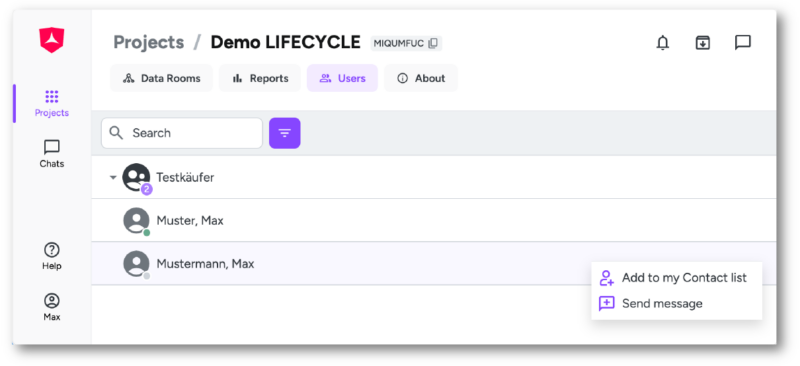
To add contacts via the Users section of a project, proceed as follows:
- After signing in to Drooms, select and enter the desired project, and select the Users tab.
Regular users (as opposed to administrators) can only view their fellow user group members in the Users section, and initiate 1-1 conversations with them, if the option ‘group collaboration’ has been enabled for their group (group members may see each other and collaborate). Otherwise the Users section will not be available.

- Expand groups(s) and select a user, who you have not added to your contacts, yet, open the context menu, and select option ‘Add to my Contact list’.
- If you selected a single user, the dialog ‘New contact’ will pop up, allowing you to add further information about the contact, or edit auto-filled information (first name, last name, phone number, company, and a note) before clicking on ‘Add’.
- If you selected several users, the dialog ‘New contacts’ will pop up, listing the selected users and allowing you to review your selection once more before clicking on ‘Add’. If you want to add further information about certain users, you can edit the respective contacts later on in the Contacts page (first name, last name, phone number, company, and a note).
If you select a user, who is already one of your contacts, the context menu option ‘Add to contacts’ will not be offered,
Regular users (as opposed to administrators) can only view their fellow user group members in the Users section, and add them to their contacts, if the option ‘group collaboration’ has been enabled for their group (group members may see each other and collaborate).
To add mobile phone contacts as contacts, proceed as follows:
- Download the Drooms iOS app (Apple App Store) on your mobile, if you have not downloaded it, yet.
- When you start the Drooms iOS app the first time, it will automatically request permissions to access your mobile phone contacts.
- If you already use the Drooms iOS app, open the phone settings.
- Allow the app to access your phone contacts. the app will sync your mobile phone contacts with your Drooms contacts as follows:
- Only registered Drooms users with a verified phone number matching one of your mobile contacts’ phone numbers will automatically added to your contacts in Drooms.
- Other mobile contacts, who are not Drooms users, will not be added to your contacts in Drooms.
To edit contacts, proceed as follows:
- After signing in to Drooms, click on the Drooms Chat icon in the vertical left main navigation bar to open the Chat section. Alternatively you can open the right hand Chat panel with a click on the top right corner Chat panel icon.
- Click on the ‘Contacts’ tab at the top of the Chat section to open the Contacts page, or click on the bottom left ‘Contacts’ button in the right-hand Chat panel.
- Select a contact, whose contact information you want to edit, and click on the ‘(…)’ icon on the right to open the contacts context menu, then select option ‘Edit’.
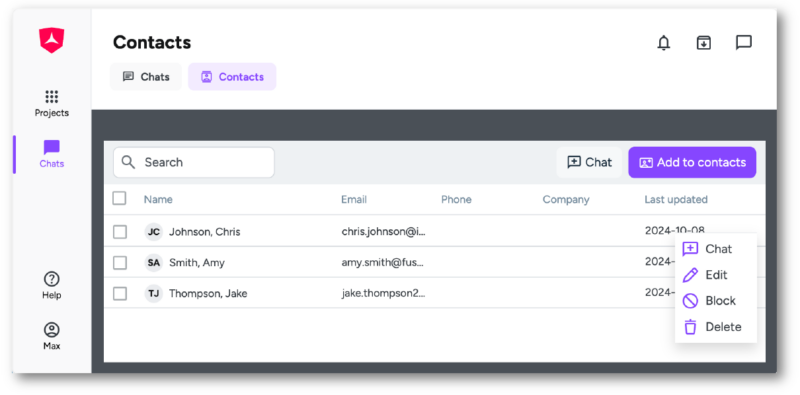
- The dialog ‘Edit contact’ opens, allowing you to edit the first name, last name, phone number, company, and a note. When done, click on ‘Save’.
To block and unblock contacts or chat participants, proceed as follows:
- After signing in to Drooms, click on the Drooms Chat icon in the vertical left main navigation bar to open the Chat section. Alternatively you can open the right hand Chat panel with a click on the top right corner Chat panel icon.
- Click on the ‘Contacts’ tab at the top of the Chat section to open the Contacts page, or click on the bottom left ‘Contacts’ button in the right-hand Chat panel.
- Select one or more contacts, who you want to block, respectively unblock, and and click on the ‘(…)’ icon on the right to open the contacts context menu to select option ‘Block’, respectively ‘Unblock’.
- A confirmation dialog will ask you to confirm your action to block, or unblock, the selected user(s). Click on ‘Confirm’.
- You can also block and unblock a single contact via the Chat panel, open it, select the 1-1 chat with the contact, whom you want to block or unblock.
- Click on the ‘…’ icon with three dots to open the chat context menu, then select option ‘Block’, respectively ‘Unblock’, and click on ‘Confirm ‘ in the next confirmation dialog to confirm your action.
- Blocked contacts are moved to the bottom of your contacts list, and are greyed out.
- Blocked users still can send messages, but you will no longer receive them in 1-1 chats, they will not be shown to you.
Blocking a contact only works for your 1-1 chats, in group chats their messages will not be hidden.
- After unblocking a users again, you will receive further on messages again, but the previous messages stay invisible.
To delete contacts, proceed as follows:
- After signing in to Drooms, click on the Drooms Chat icon in the vertical left main navigation bar to open the Chat section. Alternatively you can open the right hand Chat panel with a click on the top right corner Chat panel icon.
- Click on the ‘Contacts’ tab at the top of the Chat section to open the Contacts page, or click on the bottom left ‘Contacts’ button in the right-hand Chat panel.
- Select one or more contacts, who you want to delete, and and click on the ‘(…)’ icon on the right to open the contacts context menu to select option ‘Delete’.
- A confirmation dialog will ask you to confirm your action to delete the selected user(s). Click on ‘Confirm’.