


Drooms offers many different options to search and filter a data room for specific documents, for a variety of reasons and use cases. Inbox and trash bin are cannot be searched and filtered, their content will principally not be shown as search hits.
- After signing in to Drooms, select the desired project (and data room in projects with multiple data rooms). Then select the ‘Documents’ tab in the project’s tab bar, if it is not already selected.
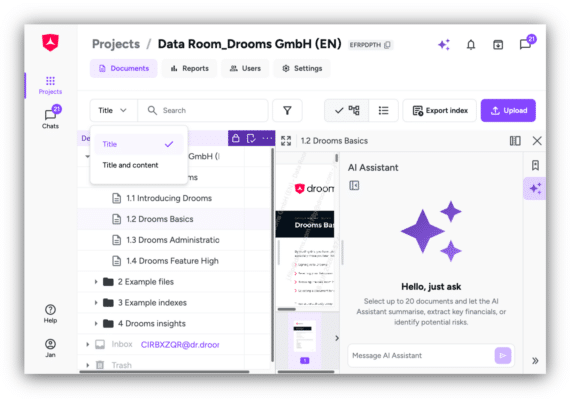
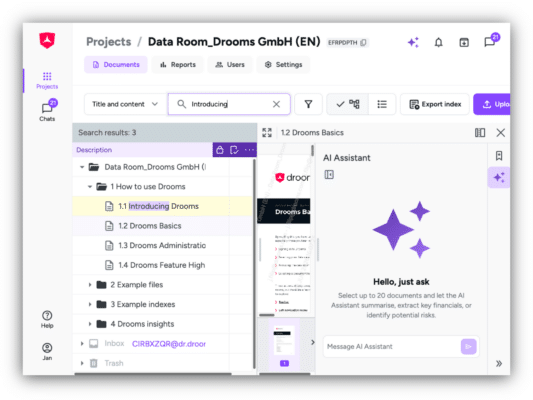
- To start a search, enter a single specific term, date, or combination of letters and numbers you search for completely. Our search does not recognise partial entries, as it is OCR-, respectively term-based. With every entry the list (in ‘List view’ mode) of matching documents will be dynamically updated in list view mode.
- By default, the ‘title’ search mode is selected and the list will show those index points containing the search term in the index description, highlighted in light Purple.

- Alternatively, you can select the ‘title and content’ search mode to additionally include the document contents in the search. Index points with documents containing the search term will then be listed below the index description search hits and not feature a highlighting, as the index descriptions will not contain the search term itself.
- If you want to locate the search hits in the index, switch to the ‘Tree view’ mode (toggle buttons to the right of the search and filter functionalities).
- Additionally, or alternatively, you can filter the index and documents using and combining a variety of different filters.
- Click on the purple filter icon right next to the search entry field to open the ‘Filter’ selection dialog and scroll down the list with options.
- From top to bottom filter options may be:
- ‘Last modified’ – filters for index points added or edited, including the upload of a file, during the day, last day, the last three days, last week, last 2 weeks, last three weeks, last month, since last login, or a custom period (single selection)
- ‘Status’ – filters for index points without files (empty ones), and/or with a file that has either been not been opened by you so far, or been opened by you at least once, or marked by you as ‘in review’ or ‘reviewed’ (multi-selection)
- ‘Format’ – filters for index points with files with certain file formats (.pdf, .xls/.xlsx, ..doc/.docx, all other; multi-selection)
- ‘Failed in conversion’ – filters for index points with files that should have been converted based upon their file format, but were not, i.e., rare conversion errors, and which were uploaded during last week, last month, since last login, or a custom period (single selection)
- ‘Non-convertible’ – filters for index points with files with formats that our system cannot convert, and which were uploaded during last week, last month, since last login, or a custom period (single selection)
- ‘Additional filters’ – filters for index points, which have to be confirmed by the creator, approved by a superior admin*, have been marked as transaction-ready*, or contain a specific search term in their title (index description), excluding those that contain the search term only within the documents attached to them (multi-selection; options marked with an asterisk are available only for admins)
- ‘My bookmarks’ – filters for index points and documents with your personal bookmarks with a certain colour (multi-selection)
- ‘Group bookmarks’ – filters for index points and documents with bookmarks with a certain colour shared within your user group (multi-selection; option is available only, if the group collaboration option ‘group collaboration’ has been activated for your group)
- ‘Language’ – filters for index points with documents in a certain language, which our system has detected (multi-selection; options are only languages our system recognises (EN, GE, FR, IT, ES, PT, NL) and which were actually detected)
- ‘To approve’ – filters for index points requiring approval that were added by a particular user group with ‘Create with approval’ permissions (single selection; option available only for admins)
- ‘Redaction’ – filters for index points with original files versus redacted files (option only available in data rooms with enabled redaction feature)
- ‘Duplicated files’ – filters for index points with actually identical files attached to them (independent from the index description), if toggled on
- ‘Uploaded by’ – filters for index points with files uploaded by a specific user (option available only for admins)
- ‘Pages’ – filters for files with less, or more, or exactly a certain number of pages using regarding operators
- Select the necessary filters and click on ‘Apply’.
- Just like, or together with, searching for a specific term, will the matching index points and files be listed in tree view mode and can be located in the index by clicking on ‘Tree view’.
- If there are several different duplicated files, they will be grouped together and labelled correspondingly (group 1, group 2, etc.) You may move duplicated files to the trash bin to reduce confusion, inefficiencies, and versioning conflicts when reviewing data room content.