Helpcentre / Drooms Basics / Drooms Chat / Signing up for the Drooms Chat
Signing up for the Drooms Chat
With the Drooms Chat you can easily and securely communicate, collaborate, and share documents with fellow colleagues, group or team members, or other parties in context of specific projects, but also independent from any projects, as well any other business partner also using Drooms.
- By default, the Drooms Chat is enabled for most Drooms user.
- We recommend a short initial sign-up procedure to ensure a valid mobile phone number as contact credentials for using the Drooms Chat.
- This sign-up procedure is only available for first time Drooms users after their very first sign in to Drooms as such and before they sign in to the very first project they have been invited to.
If the Drooms Chat is not available, because there is no ‘Chat’ section icon in the vertical left main navigation bar, and the first tab on the top right is missing, the reason can either be that you may have turned it off in your user settings in the User Details page, or that it has been disabled upon your company’s request. In the first case you can turn it on again, in the second case this will not be possible.
- The Drooms Chat can be individually disabled via the user settings on the User Details page, if a user does not want to receive or send messages, or share documents at all.
If the Drooms Chat is disabled, users, who already participated, will be removed from the contacts lists of other users, and in previous conversations including them their name will be shown as ‘Unknown’.
To sign up for the Drooms Chat, proceed as follows:
- After starting and signing in to Drooms for the fist time, click either on the Chat icon in the vertical left main navigation bar to open the main Drooms Chat section, or click on the top right Chat tab to open the right-hand Drooms Chat panel.
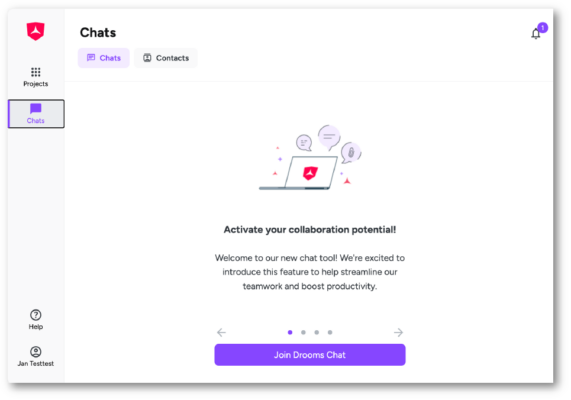
- A short slide show highlights the benefits of the Drooms Chat for all users, who have not signed up for the Drooms Chat, yet. Click on ‘Join Drooms Chat’ to sign up for the Drooms Chat, then enter your mobile phone number for more security and a seamless access to the Drooms Chat. A verification code will be sent to the entered mobile number after clicking on ‘Next’.
Only valid phone number formats are supported
- Enter the received code and click on ‘Submit’ to finish the verification process. The phone verification process is optional, you can also click on ‘Skip’ to skip it.
The phone number verification flow is temporarily not available for users who decided to use an authenticator app instead of the SMS verification method for 2 Factor Authentication, were required. Please simply skip the phone verification step.
- When having verified your phone number, or having skipped this step, you have signed up for the Drooms Chat and can start to:
- Add and manage your contacts
- Read received messages from other users, who added you to their contacts and initiated a chat with you, and respond
- Initiate own 1-1 or group chats with other users
- Share documents and folders with other users