


Once you have ordered a Drooms subscription plan and have set up your Drooms company account, or have been granted a company account administrator membership, you can review and manage:
-
- Subscription details and management
- Company profile
- Billing and payment methods
- Members
- Projects
You can access your company account or sign in to it:
-
- Directly from the Success page after ordering a subscription plan via our Pricing page (drooms.com/pricing/)
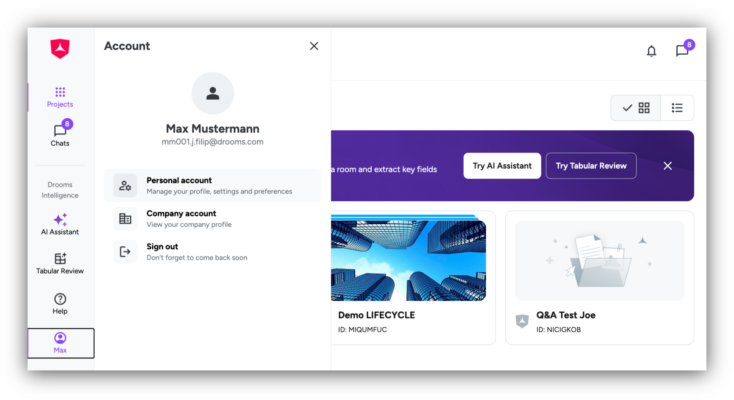
- Open your user account in Drooms (web.drooms.com) by clicking on your user name in the vertical main navigation menu on the left and then select the second option ‘Company account’ (see image below)
- Directly via https://cap.drooms.com/sign-in
- Please note that in case you should be member of several different company accounts, you will have to select, which company account you want to access, before the Company Account section is shown:
To manage your subscription:
-
- Sign in to your company account.
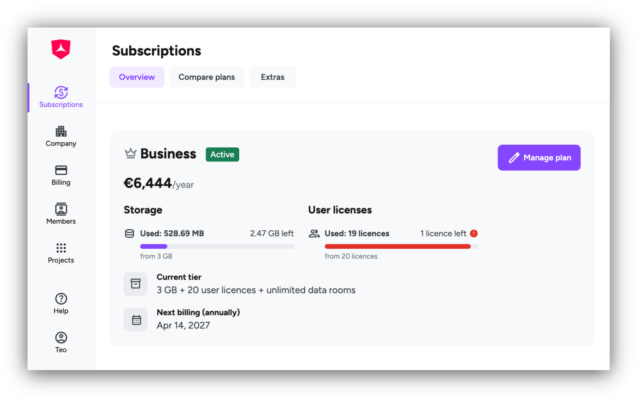
- In the vertical navigation menu on the left select the first drawer ‘Subscriptions’ with the three tabs ‘Overview’, ‘Compare plans’, and ‘Extras’, if it is not already selected by default.
- The tab ‘Overview’ lets you review and manage your current subscription plan:
- review your used and available storage space and user licenses, respectively the current corresponding subscription plan tier,
- review the current monthly or annual subscription fee and the next billing date
- Click on ‘Manage plan’ to open a dialog window allowing you to select a different subscription plan tier with a higher or lower available storage space and number of user licenses, or to upgrade your current subscription plan to a higher plan (click on ‘Upgrade plan’).
- The tab ‘Compare plans’ lets you compare your current subscription plan with the other available plans and upgrade it or change between monthly and annual billing period, once possible.
- The tab ‘Extras’ offers additional available Drooms services and functional features depending on your current subscription plan (may vary).
To manage your company profile:
-
- Sign in to your company account.
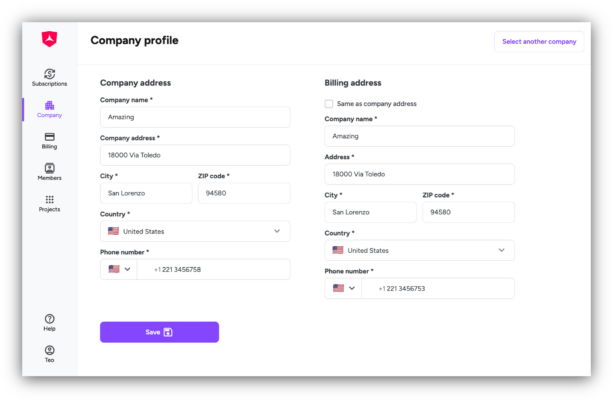
- In the vertical navigation menu on the left select the second drawer ‘Company’ to update your company and billing addresses.
To manage your billing details:
- Sign in to your company account.
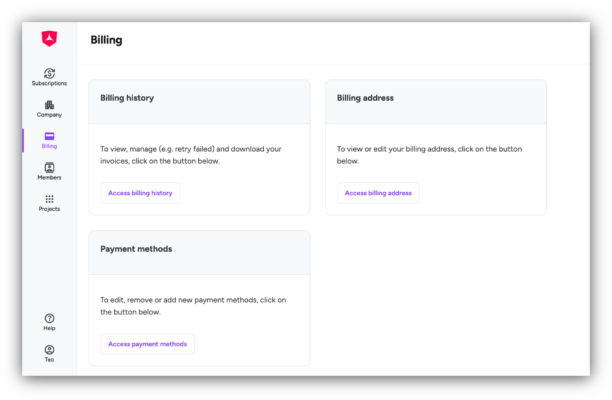
- In the vertical navigation menu on the left select the third drawer ‘Billing’ to:
- review your billing history,
- update your billing and shipping addresses,
- add and update your payment method.
To manage fellow company members and their roles:
-
- Sign in to your company account.
- In the vertical navigation menu on the left select the fourth drawer ‘Members’ to add and invite an unlimited number of fellow company members to your company account with following roles:
- Company account admin: Can manage subscriptions, billing details, and company settings, as well as create projects and view project details.
- View-only member: Can only access the Company profile page with view-only permissions.
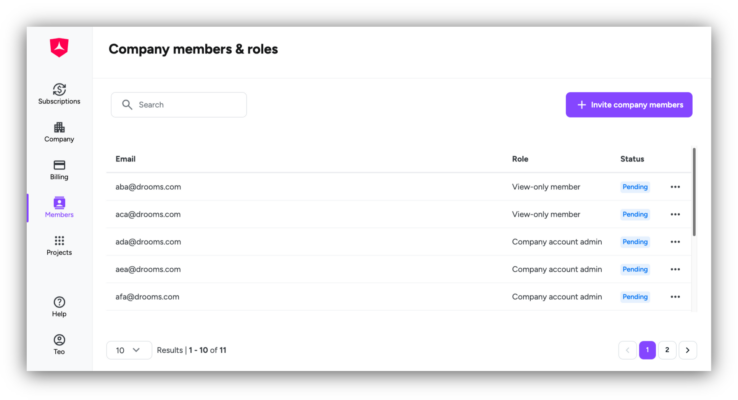
-
- Please note: Company members do not consume user licenses, unless they are added to a data room project or become project admins.
To manage your projects:
-
- Sign in to your company account.
- In the vertical navigation menu on the left select the fifth drawer ‘Projects’ to review your projects, used storage, and used user licenses.
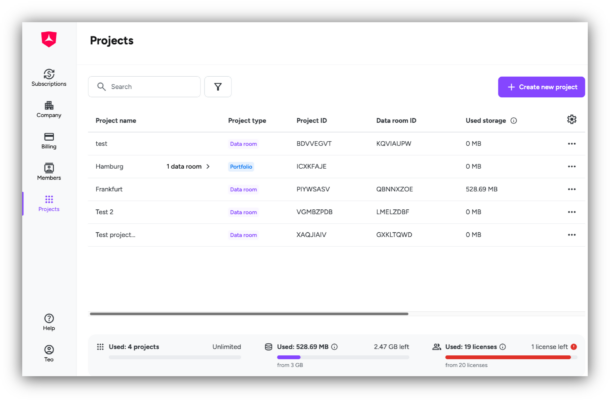
- To create new projects, click on ‘Create new project’ to be redirected to Drooms (web.drooms.com), then:
- Click on button ‘Create new project’ at the top right of the Drooms Home page with the Projects overview (only available for Company account administrators).
- Please note: The maximal number of projects, the available storage space, and the available number of user licenses depend on your current subscription plan.
- -> Read more about creating projects